Total Reconstruction Pole Manipulation
This chapter describes how to manipulate the reconstruction pole hierarchy using the Modify Reconstruction Poles tool. For a description into Total Reconstruction Poles, see here in the Reconstructions chapter.
1 Modify Reconstruction Poles Tool
Found on the Tool Palette, the Modify Reconstruction Poles Tool is used to interactively modify the reconstruction poles for a given plate ID.
|
Icon |
Tool |
Shortcut |
Operation |
|
|
Modify Reconstruction Pole |
P |
Drag or |
1.1 Choosing a Plate ID to move
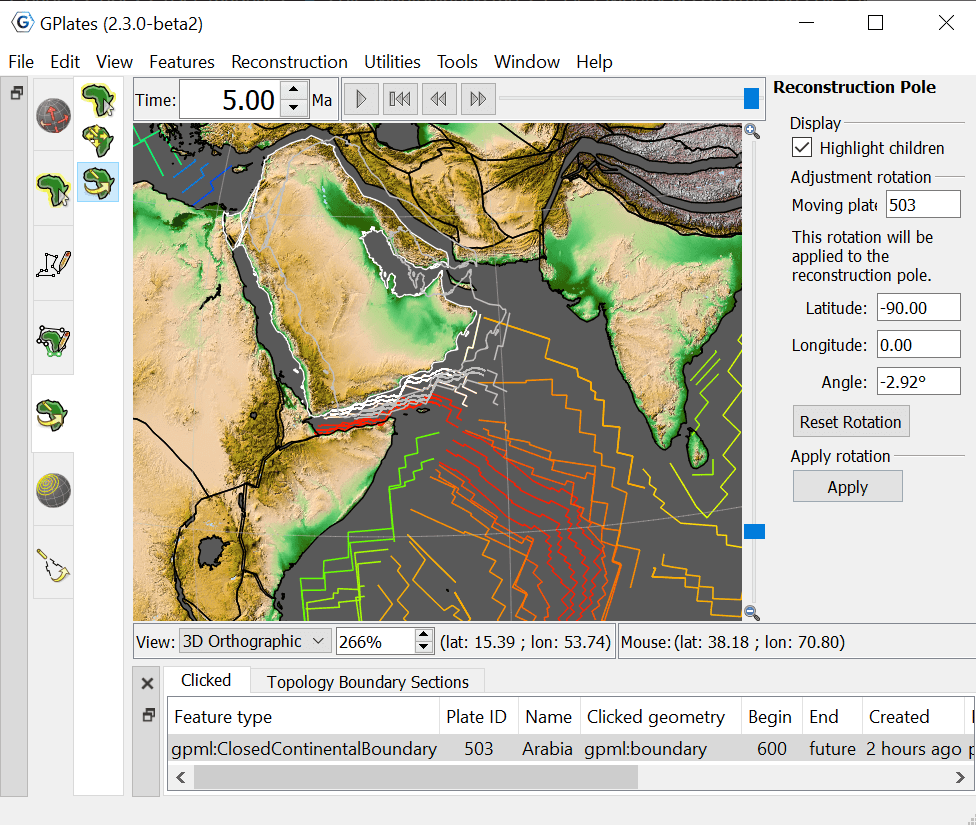
To select a Plate ID to move, the Plate needs to be in the field of view, and the reconstruction time needs to be at the correct geological time.
The second step is to select a feature which belongs to the plate ID that should be changed. Select the Choose Feature tool,

Now select the Modify Reconstruction Poles tool,

1.2 Adjusting a Reconstruction Pole
After the feature plate has been selected with the Choose Feature tool
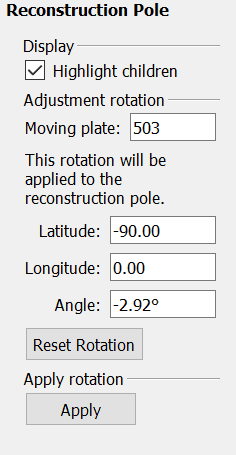
Highlight Children.
Ticking this option will also highlight any plates that would be affected as a result of moving the selected plate due to the current rotation model.
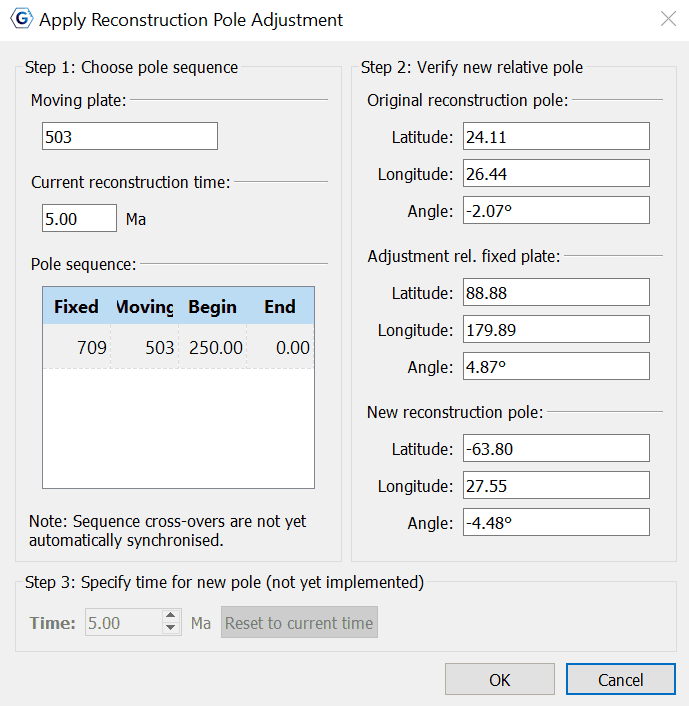
1.3 Committing Changes to a Reconstruction Pole
-
Choose a pole sequence
-
Verify new relative pole
2 Move Pole
|
Icon |
Tool |
Shortcut |
Operation |
|
|
Move Pole |
O |
Click on the pole marker and drag it to the desired location, or specify its location in the Move Pole Task Panel. |

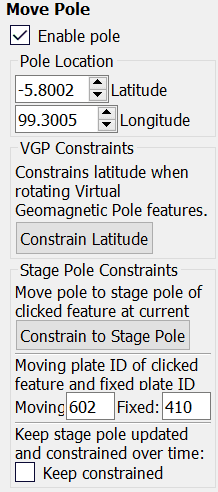
The Move Pole task panel allows users to manipulate the poles location by latitude and longitude. The panel also includes VGP and Stage Pole constraints.
|
|
|


